Which screw is next
The tool runs a program. It does not know the assembly sequence, so a screw can be skipped or tightened twice.
A smart tool controls its own torque. Arkite adds what the tool cannot know: which screw is next, which program that screw needs and whether the tool is in the right place. Every result is stored with the unit.
What does Arkite add to a smart tool?
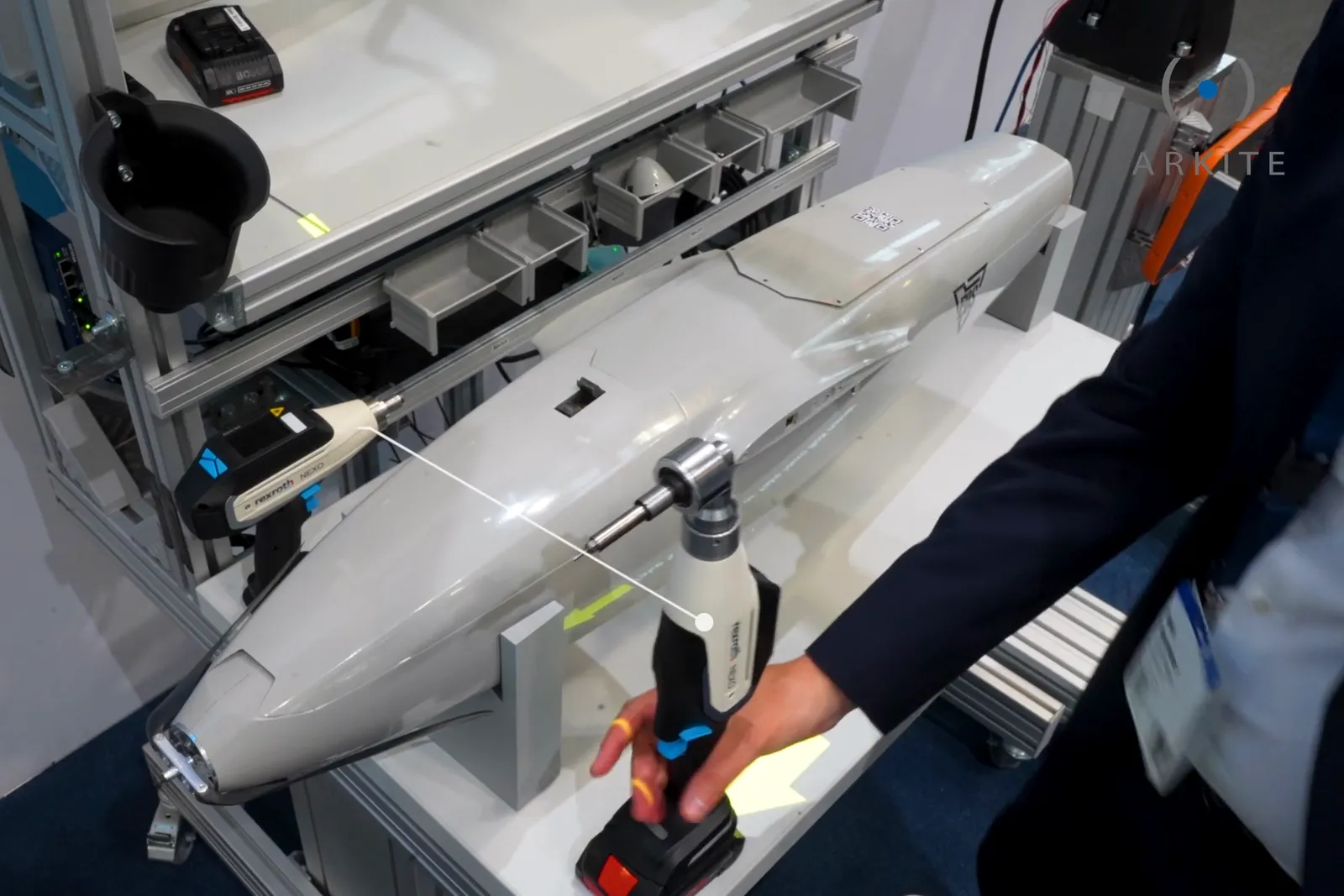
Arkite connects to smart tools through Open Protocol, Ethernet or Modbus and runs them as part of the work instruction. It selects the program or torque for each screw, enables the tool only during the right step and, with Arkite VALIDATE, only at the right position, blocks the next step until the torque is confirmed and logs the result per unit.
The tool runs a program. It does not know the assembly sequence, so a screw can be skipped or tightened twice.
A correct torque on the wrong screw still reads OK on the controller.
With several variants on one workstation, the operator has to select the right program by hand.
Without a link to the order and serial number, torque results stay in the controller.
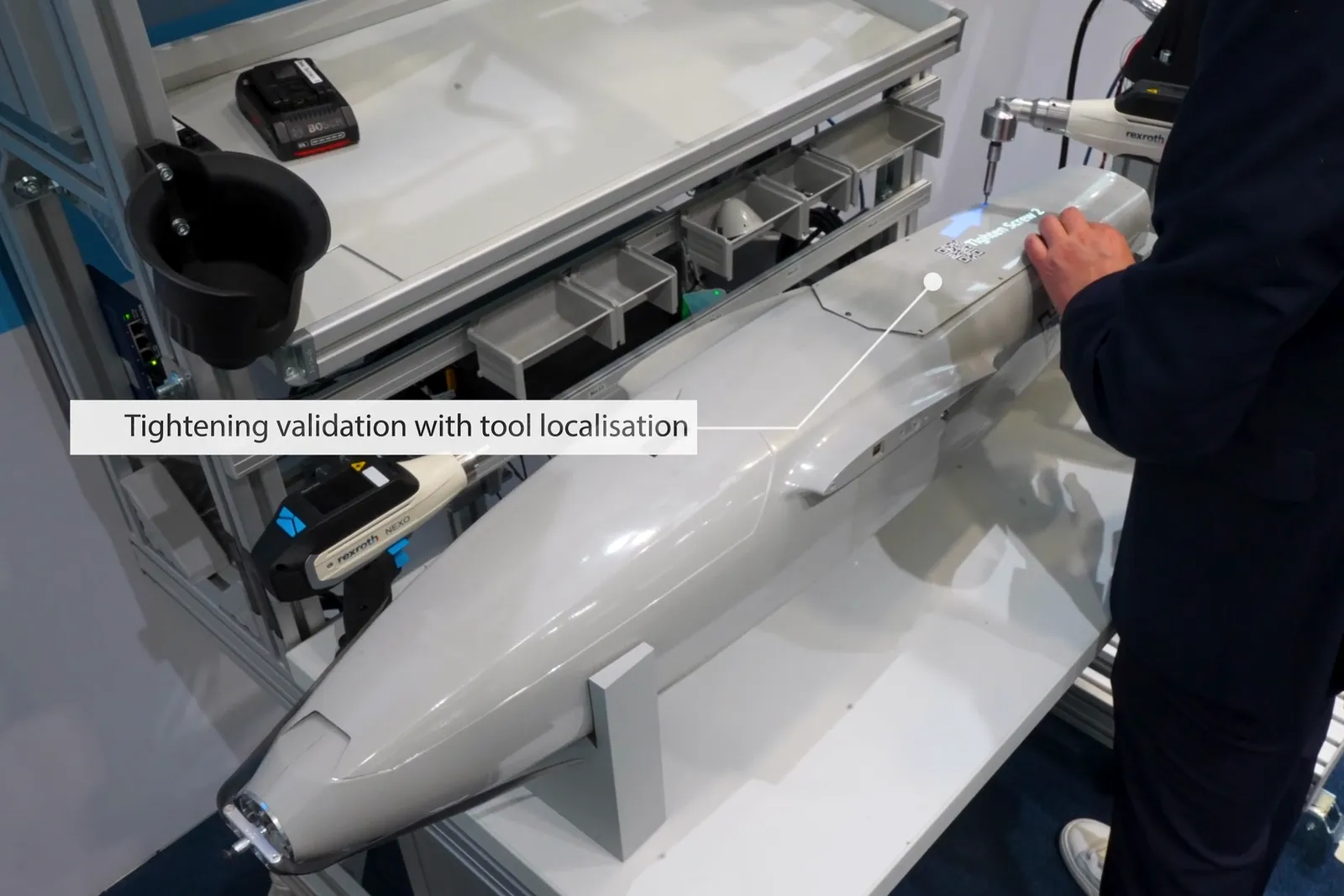
On Arkite VALIDATE and Arkite VISION workstations, the Arkite 3D sensor follows the position of the tool. The tool is enabled only when it is at the screw the current step asks for, and stays disabled everywhere else.
The tool cannot tighten the wrong screw, and every result is validated together with the place where it was applied.
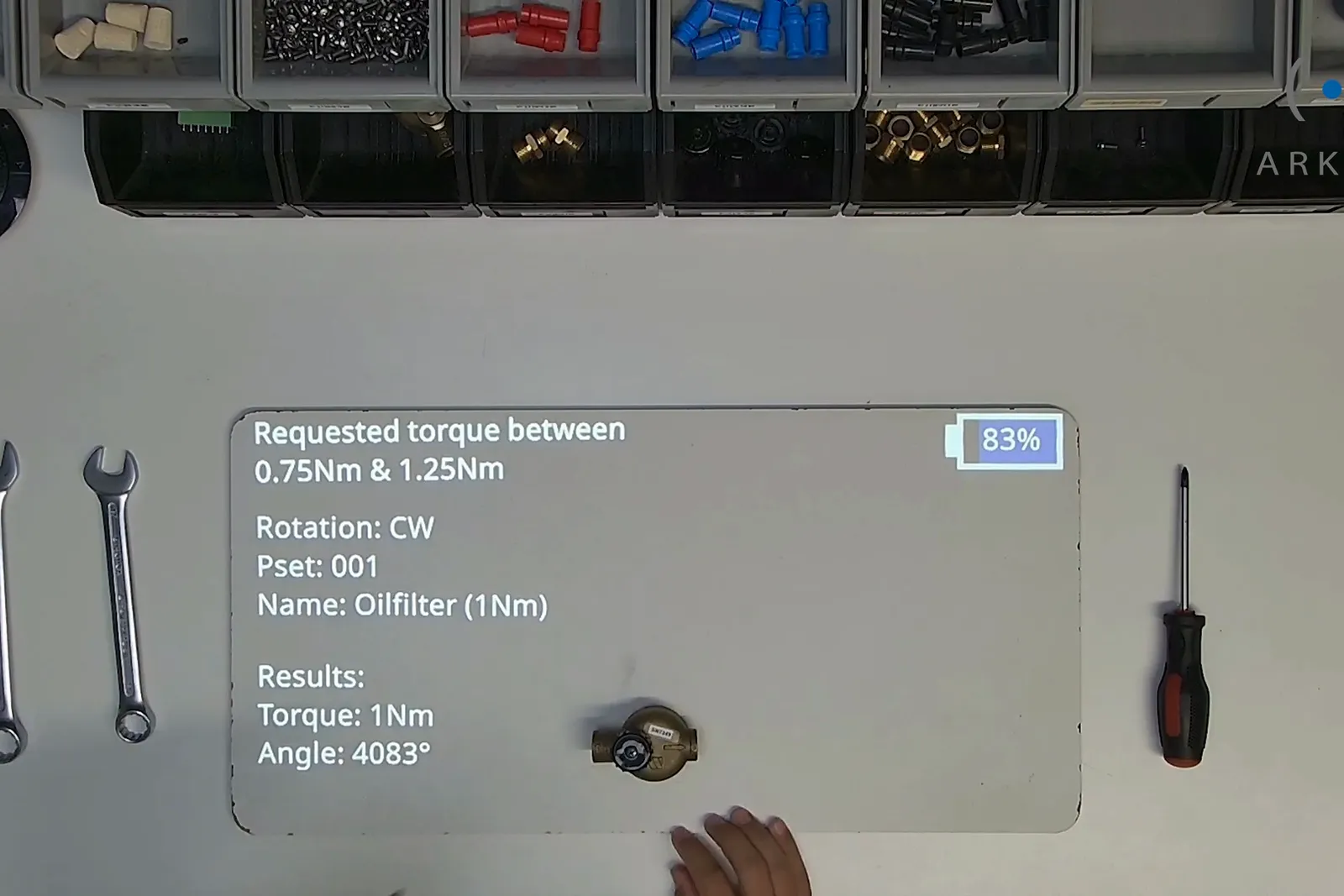
Each tightening step in an Arkite job carries its own program: the Pset or torque window that screw needs. When the step starts, Arkite selects it on the tool automatically, for the variant that is being built.
The requested torque, the rotation and the program are projected next to the part. The tool sends back its result, such as torque and angle, and the next step starts only when the tightening is confirmed.
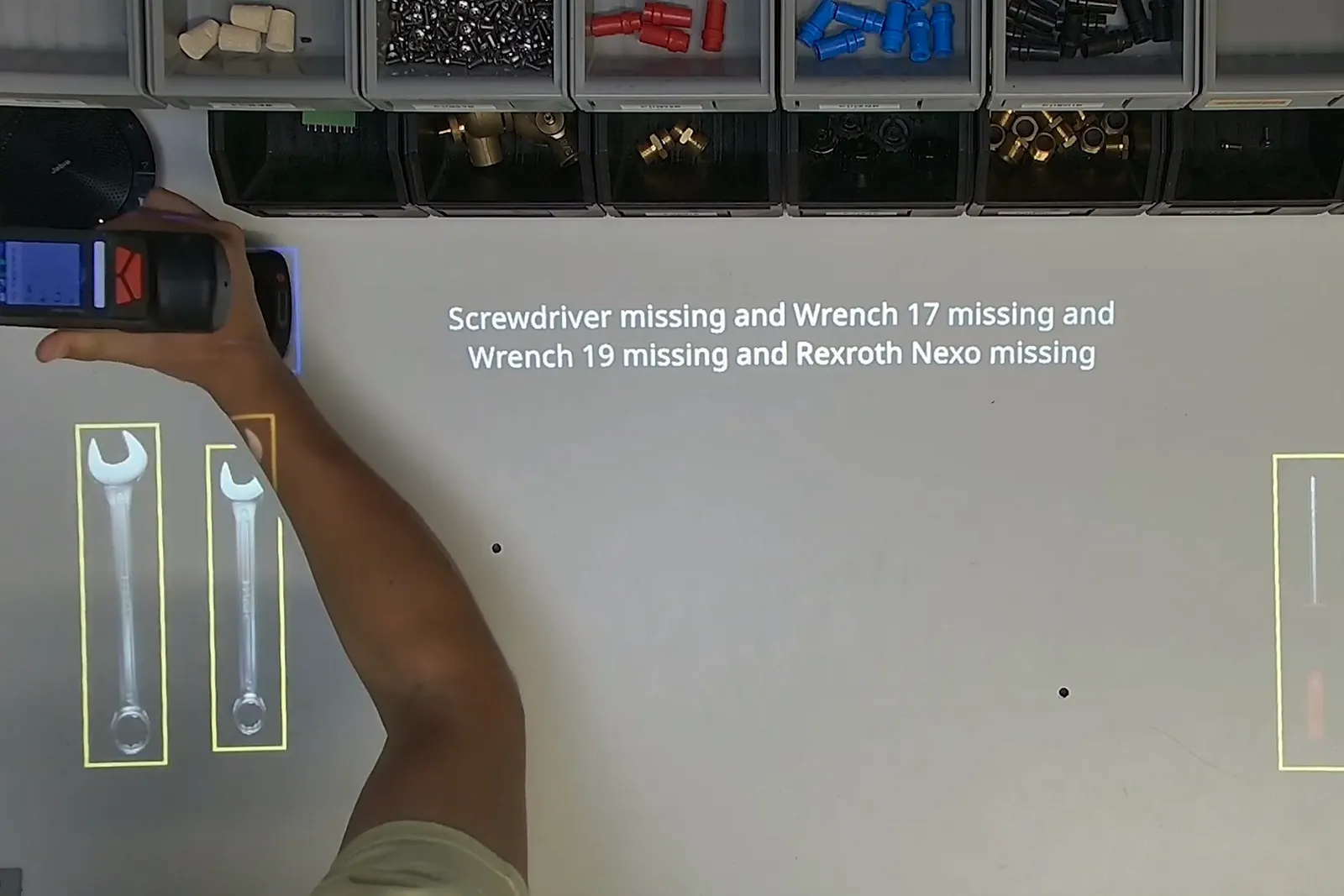
The Arkite 3D sensor also checks the tools themselves. The workstation shows which tools are not in their holder, for hand tools as well as smart tools, before the job goes on.
Smart tools connect through communication modules that are built into the Arkite software. Integration is configuration, not a development project.
Smart tool protocols
 Modbus TCP
On the same workstation
 OPC UA
 MQTT
 Siemens S7 PLC
Smart tools
 Atlas Copco tools
 Bosch Rexroth Nexo tools
The bin with the right screw is marked. With Arkite VALIDATE, the pick is checked by the 3D sensor.
Arkite selects the program for this screw and this variant on the tool.
The tool is enabled for this step and, with Arkite VALIDATE, only at this screw.
When the torque is confirmed, the next step starts and the value is logged with the unit. Until then, the step stays open.
Stored in the Arkite logging database or in your own database, and available in Power BI and other BI tools.
Tools and controllers that communicate through Open Protocol, Ethernet or Modbus. Arkite works with tools from Atlas Copco, Bosch Rexroth (Nexo), Desoutter, Hoffmann Group, Cleco and DEPRAG. For other brands, share the controller type and we check the protocol.
No. The communication modules are part of the Arkite software and are configured, not programmed. The tightening programs stay in the tool or controller; Arkite selects the right one for each step.
Smart tool integration is part of every level: with Arkite GUIDE, the tool is enabled per step, the program is selected and the torque is logged. Enabling the tool only at the right position uses the Arkite 3D sensor, so it needs Arkite VALIDATE or Arkite VISION.
Into the Arkite logging database or your own database (MySQL, MS SQL Server, Oracle, MariaDB), linked to the order and serial number. From there it is available in the Arkite dashboards and in Power BI or other BI tools.
Tell us which tools and controllers you use, and we show the integration on a workstation like yours.
Your privacy choices
We use analytics to understand how the website is used and to measure the results of our campaigns on LinkedIn, Google, Microsoft and Meta. Statistics and conversions run through our own server. To show our ads to earlier visitors, tags from Google, Microsoft and LinkedIn are loaded in your browser. Embedded calendars, webinar forms and videos come from their providers and may set their own cookies. See our privacy notice.